

Log in and set up your profile and users
Overlay

Step 2

Step 2 overview
Now you’ve got everything you need to log in and set up Bankline.
Here’s where your great work from Step 1 pays off. Your planning meeting will have given you the info you need to set up Bankline in the way that works for your organisation.
We’ll take you through each stage of profile set-up and we’ll share links to useful resources as we go.
Cora can also guide you through the whole set-up process from start to finish in Bankline. Once you’re logged in, click the chat button and type ‘I’m new here’ to begin.
Tip: You don’t have to explore all the learning links in each section, we’re just giving you options to choose the best learning method for you and your team.




1. Logging in for the first time
To activate your smartcard and log in for the first time, follow the instructions in our support guide:
You can also refer to the resources below. If you need any help, click the chat button on the log in page. Cora will answer your questions and help you get logged in.
Tips for logging in
Always start from www.natwest.com/bankline, when logging in and go to the login page from there.
Don’t confuse your smartcard PIN with the log in PIN you’ll create at first log in. The smartcard PIN is just for using with your smartcard.
Once you put in Customer ID and User ID, you can find log in steps on the drop-down on the next screen in the logging in journey.
Other resources to help you log in
2. Setting up your profile
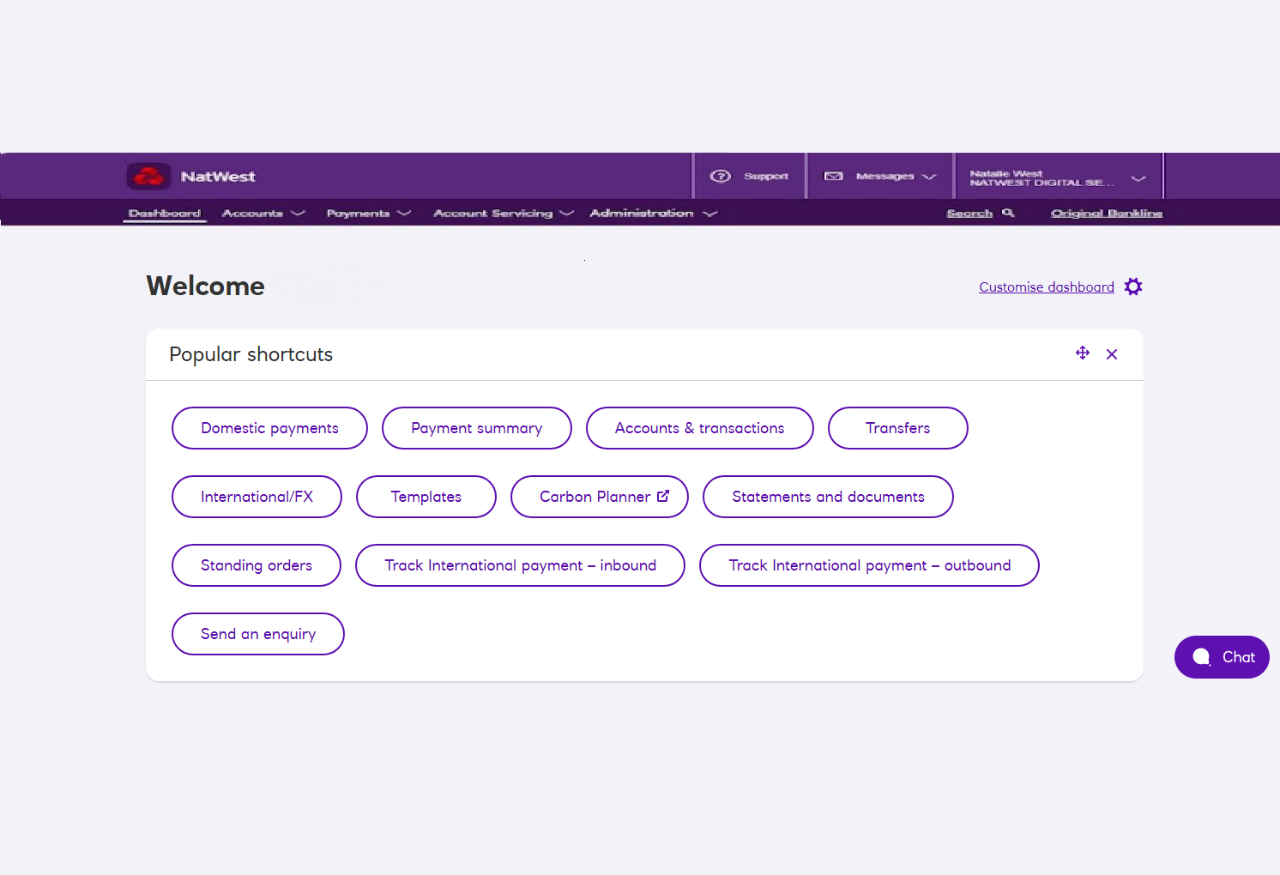
Once you’re logged in, you’ll land on the dashboard.
This is the heart of your Bankline profile. Check out the menu that runs across the top of the screen. This is where you’ll access all features in Bankline, and we’ll flag which section to head to for each part of this profile set-up journey.
Account leader
Account leaders can add and manage users and open and close accounts (you’ll need at least two to approve any changes).
They can also create and approve payments and view accounts and transactions.
Information Message
Payment controller
Allows users to raise and approve payments and open and close accounts.
Payment controllers can also view accounts and transactions.
Information Message
Account viewer
Gives users the ability to view accounts, transactions, payments and statements.
Information Message

Tips for creating users
You choose each user’s User ID, this can’t be changed once created, and it’s your responsibility to share this with the user once they’re set up
We’ll send every user’s smartcards to the postal address you provide.
On the manage users screen, account leaders can also:
- View requests or changes they have not yet approved.
- View requests or changes requiring second approvals.
- View and edit all existing users and their roles by clicking edit against the user.
- Order replacement smartcards, order QR readers and request an activation code for an existing user who has locked themselves out of Bankline or forgotten their login details.
For additional support you can visit the Roles and users category in the Administration section of the Bankline for Communities FAQ Hub.
How to add an account
Here’s how you add an account:
- From 'Accounts' select 'Register accounts'.
- Choose 'Register your existing accounts'.
- Now you'll see a list of accounts for the same organisation as your main account. Select the accounts you want to add.
- Scroll to the bottom of the page and click 'Continue'.
- Check you've selected the right accounts.
- Click 'Submit'.
You'll need a second account leader to approve this.
You can only add accounts within your own organisation, and not third party accounts.
Information Message

Account tips
Refer back to your planning section, to add the accounts your team has agreed.
If the accounts are connected to your main account they’ll be listed when you go to add them. Don’t worry if you don’t see the account you’re looking for, as you can register these by selecting 'register new accounts'.

Congrats!
You’ve set your profile up. Smartcards for the users you’ve just set up should be on the way soon.
In Step 3 we’ll help you get your team settled on Bankline for Communities, explore how to make payments, and show you what onward support is available.
Opens in a new window