


The ‘Support’ button is toward the top right on every Bankline page. From here you can access our library of Bankline FAQs.
Log in and start using Bankline

Step 2
To activate your smartcard and log in for the first time, follow the instructions in our support guide:
You can also refer to the resources below. If you need any help click the chat button on the log in page. Cora will answer your questions and help you get logged in.
Always start from www.natwest.com/bankline, when logging in and go to the login page from there.
Don’t confuse your smartcard PIN with the Log in PIN you’ll create at first log in. The smartcard PIN is just for using with your smartcard.
Once you put in your Customer ID and User ID, you can find log in steps on the drop-down on the next screen.
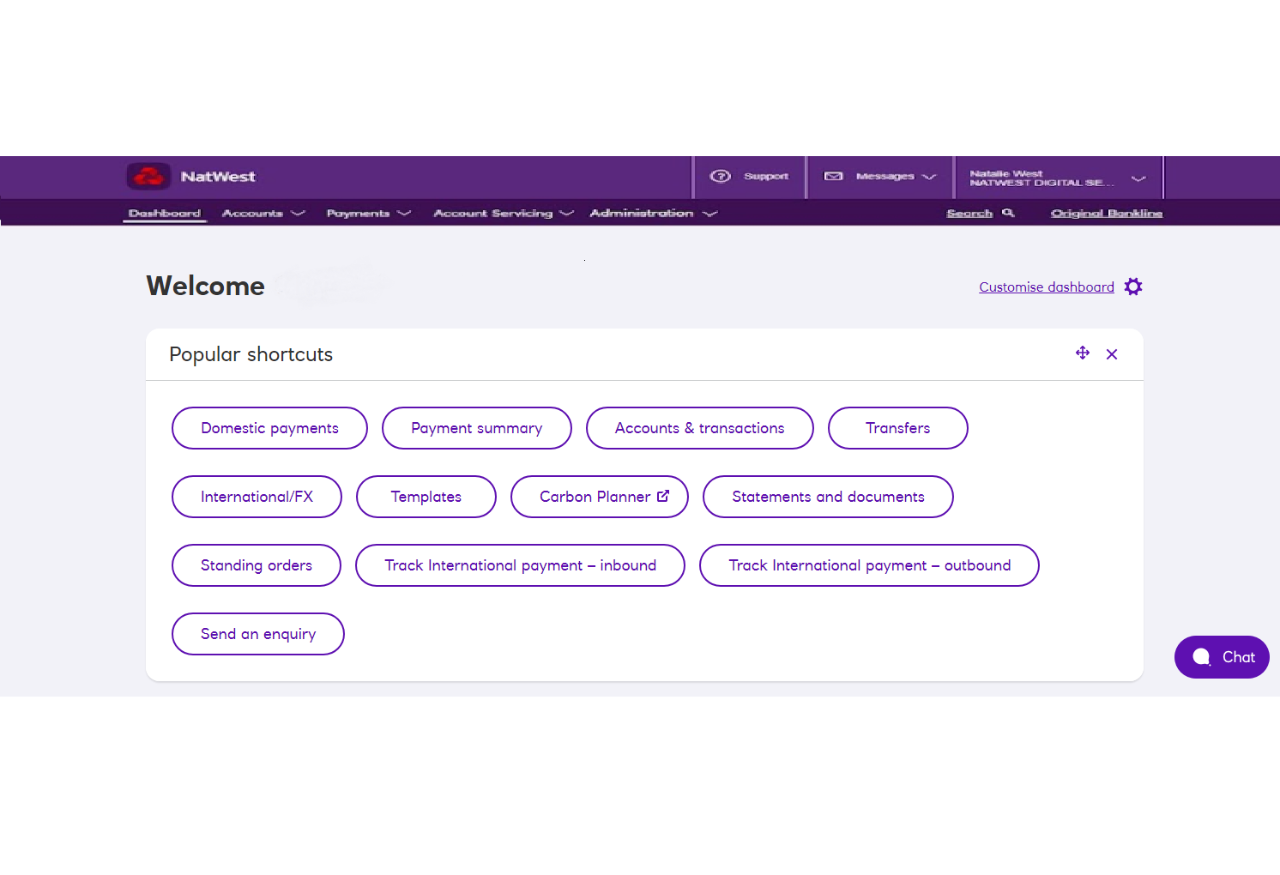
Once you’re logged in, you’ll land on the dashboard.
Think of this as your home page. From here you can access key parts of Bankline. You can also customise your dashboard to suit you:
While you’re getting settled, it’s worth us pointing out two things:
The ‘Support’ button is toward the top right on every Bankline page. From here you can access our library of Bankline FAQs.
The ‘Chat now’ button pops up toward the bottom right of each page. Click this to chat to us anytime. Cora can answer your queries and connect you to a Bankline specialist (in working hours). Once you start a chat, you can move the location of the chat box.

If you’re using Bankline Mobile, instead of approving payments with your smartcard, you can complete the approval step by using your phone’s biometric functions (if your phone has these features). In other words, you can use facial recognition or your fingerprint to approve the payment.
Bankline Mobile is available to Bankline customers on selected iOS and Android devices with a UK or international mobile number in selected countries. It’s free to use and download, but standard payments fees still apply.

Also referred to as inter account transfers or IATs. This is a way of transferring funds in sterling or foreign currency between your registered accounts in Bankline.
Usually, you’ll be able to see and use the transferred funds immediately.
Standing orders are recurring payments you can set up that are then made automatically for as long as the standing instruction apply.
To set up or edit a standing order for one of your accounts, there’s a separate online form to complete, which you can access via Bankline.

Templates let you create and save payee details for future use when making payments. If you need, you can set a maximum amount that can be sent. You can also create templates for domestic transfers between your accounts.
If you’re using Bankline Mobile, instead of approving payments with your smartcard, you can complete the approval step by using your phone’s biometric functions (if your phone has these features). In other words, you can use facial recognition or your fingerprint to approve the payment.
Bankline Mobile is available to Bankline customers on selected iOS and Android devices with a UK or international mobile number in selected countries. It’s free to use and download, but standard payments fees still apply.

Your organisation should have processes in place to ensure you check the validity of all payment requests. This can include:
All payments require dual approval, so be aware of your responsibilities and give the same level of attention to every payment responsible for.
Keep up to date on current fraud threats by visiting the security centre, attending our fraud awareness webinars, and reading any on screen messages and alerts.
For a full run through of your payment options and tips for making things efficient and secure, join a Bankline payments webinar.
These resources will help you when you come to raising and approving all kinds of payments:

We hope you’ll feel at home in Bankline in no time.
In Step 3, we’ll cover tips for getting the very best from Bankline and resources for future success.