

Our receipt management service, which is currently available on the NatWest mobile app, will close on 28 February 2022. If you receive receipts by email, or use this service, please download all your receipts by 21 February 2022. The latest iOS/Android version of the App will be required. If you receive receipts from suppliers, please let them know this option will no longer be available.
Overlay
Premier
Premier Banking
Receipt Management
We’re closing our receipt management service
Mobile App available to Online Banking customers with a UK or international mobile number in specific countries. This service is available to Premier & Business Banking customers only.
No-fuss receipt tracking
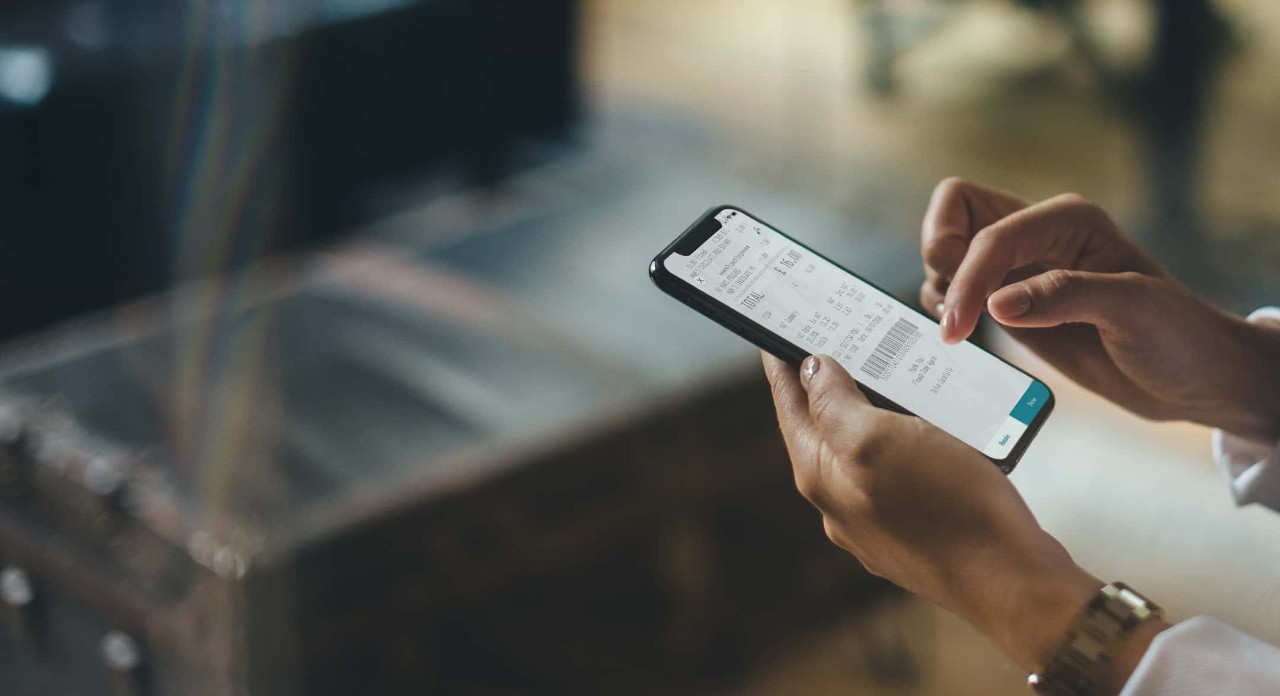
Receipt Management is a free tool integrated to our Mobile banking App. We know losing a receipt can be a pain, especially when you need to return a big ticket item. Our Receipt Management tool lets you easily capture email and paper receipts and store them in one secure and searchable library.
Store receipts as proof of purchase or warranty reminders if you ever need to return something
Use notes and tags to keep track of your purchases or to quickly find a receipt
Free to all Premier customers
Information Message
Categorise expenses in separate folders so you can track total spend and stay within budget
Export or share with your accountant when completing a tax return or filing an expense report
Information Message
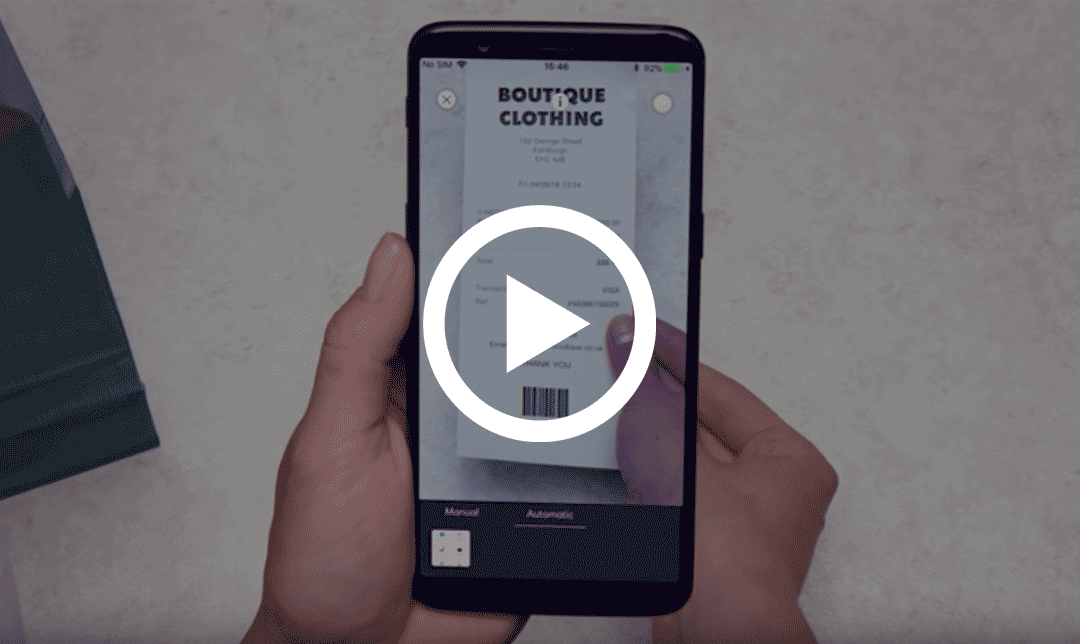
How does Receipt Management work?
Capture a photograph of your paper receipt or forward your e-receipt to your registered email address in the app. The service will take care of the rest, working it's magic to create a digital receipt, storing essential information about your purchases.
Get started with Receipt Management
Do you have our Mobile Banking app?
How do I ...
Ready to get started?
We're excited to introduce you to our Receipt Management tool and some of the great features that lots of our customers are currently using.
How do I capture a receipt?
-
01
Log in to the NatWest Mobile App, navigate to ‘Manage Receipts’
-
02
Select ‘Capture Receipt’
-
03
On first use you will be asked to allow access to the camera, this will allow the app to take a picture of the receipt
-
04
The app will try to capture the receipt using 'automatic' mode, the blue area shows where the app has auto-detected a receipt. You can also switch to ‘Manual' mode to capture your receipt
-
05
Once the picture has been taken, you will be presented with a preview
-
06
Next you'll see the information captured from the receipt digitally, this information can be edited if required
How do I capture a long receipt?
For very long receipts, it's best to be in 'Manual' camera mode otherwise the receipt may be too far away from the camera to take a clear image with legible text.
-
01
Complete steps 1, 2 and 3 from above
-
02
Take an image of the top part of the receipt in 'Manual' mode
-
03
Tap on 'Add Section' in the following screen
-
04
You'll see the first section of the receipt at the top of the screen. Now line up the next section of the receipt so that it matches and joins up with the first image
-
05
Tap on the circular capture button at the bottom of the screen get the image of the next section
-
06
Make sure they are seamlessly stitched together by sliding the previous image capture over the new capture to meet where the previous image ended
How do I export my receipts?
-
01
Log in to the NatWest Mobile App, navigate to ‘Manage Receipts’
-
02
Click on ‘Receipts’ at the top of your screen
-
03
Click on the ‘Select’ button and then select those you would like to export
-
04
Click on ‘Export’ at the bottom of your screen, you will be asked what format you'd like
-
05
Send the exported list to yourself, your accountant or bookkeeper
How do I set up a receipt email ID?
Setting up a receipt email ID will allow you to forward your e-receipts or receive your receipts directly from merchants to the app.
-
01
Log in to the NatWest Mobile App, navigate to ‘Manage Receipts’
-
02
Click 'Create Receipt Email'
-
03
Create a unique ID to be used as your receipts email and click 'Done'
For example - username@expenses.natwest.com
-
04
Select 'Confirm' to create your new electronic receipts email
-
05
You will now have the ability to forward email receipts from your inbox or directly from merchants
How do I match my receipt to a transaction?
-
01
Log in to the NatWest Mobile App
-
02
Select the account you made the payment from and go to 'View transactions'
-
03
Select the transaction you would like to attach your receipt to
-
04
Select 'Capture receipt' under the Attachment title top right of the page
-
05
Capture the receipt using the skills you previously learned in the capture guide
-
06
You will now have the ability to view the receipt for this transaction